
How to Export Confluence to Markdown (Complete Guide)
How to Export Confluence to Markdown
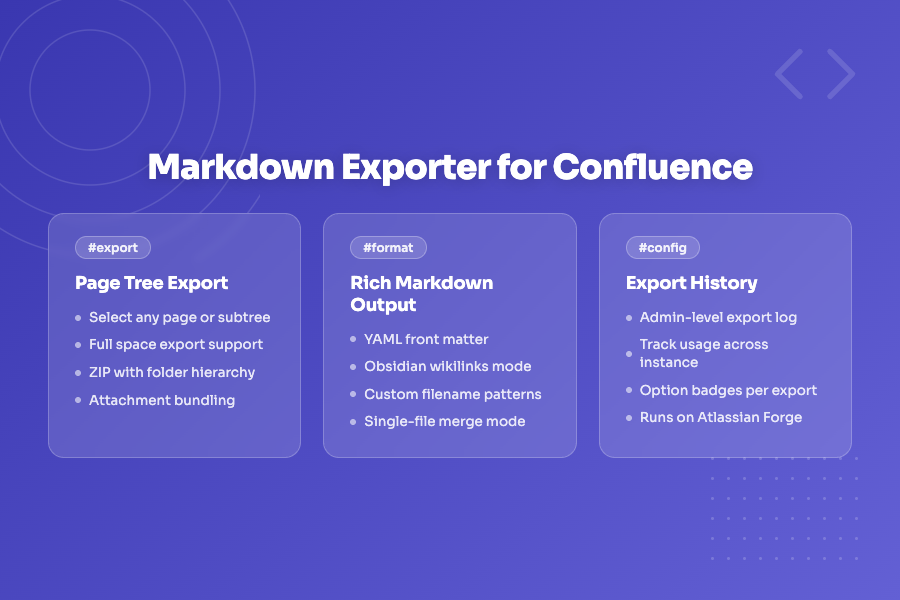
There are plenty of reasons you might need your Confluence docs in markdown — migrating to another platform, publishing to a static site, syncing with a Git repo, or just keeping an offline backup. Whatever the reason, Confluence's built-in export doesn't give you clean markdown. It gives you HTML or PDF.
Markdown Exporter & Importer for Confluence fills that gap. Here's exactly how to use it.
Option 1 — Export a Single Page
Best for: grabbing one page quickly — a README, an architecture doc, a runbook.
- Navigate to the Confluence page you want to export
- Click ••• (More actions) in the top-right
- Select Export to Markdown
- Choose Single Page Only
- Click Export and download the
.mdfile
The exported file includes all inline images and attachments (downloaded locally), code blocks with syntax highlighting, tables, lists, and formatting. Images are referenced with relative paths so they stay linked correctly.
Option 2 — Export a Page Tree
Best for: exporting a section of your docs — e.g. a product's documentation, a project wiki, or an onboarding guide.
- Navigate to the parent page
- Click ••• → Export to Markdown
- Choose Include Child Pages
- Review the page tree preview — uncheck any pages you want to skip
- Click Export and download the ZIP
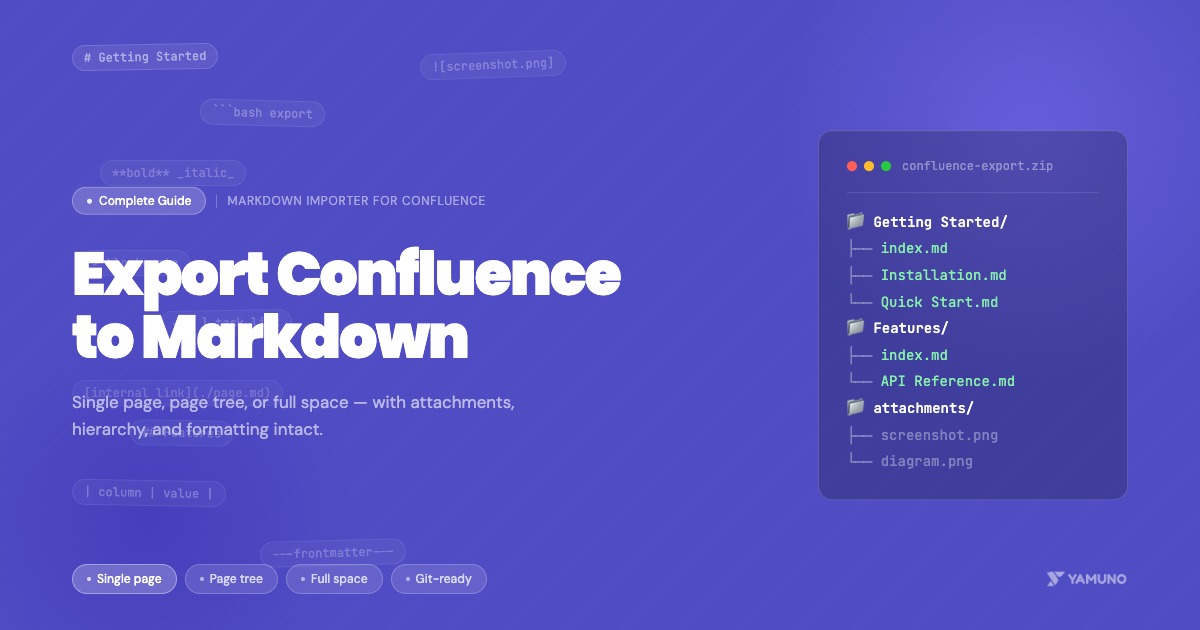
The ZIP preserves your page hierarchy as folders:
confluence-export/
├── Getting Started/
│   ├── index.md
│   ├── Installation.md
│   └── Quick Start.md
├── Features/
│   ├── index.md
│   └── API Reference.md
└── attachments/
    ├── Getting Started/
    │   └── screenshot.png
    └── Features/
        └── diagram.png
Internal links between pages are converted to relative markdown links, so cross-references stay intact.
Option 3 — Export an Entire Space
Best for: full space backups, platform migrations, or archiving completed projects.
- Open the app from the Apps menu in Confluence
- Switch to Export mode
- Select the space you want to export
- Review the summary (page count, size estimate)
- Click Export Space
- Wait for processing — large spaces can take a few minutes
- Download the complete ZIP archive
The output structure mirrors your Confluence space, with all pages, child pages, and attachments organized in folders matching the page tree.
What Gets Preserved
The exporter converts all standard Confluence content to clean markdown:
- Text formatting — bold, italic, strikethrough, headings H1–H6
- Tables — including column alignment and header rows
- Code blocks — with language and syntax highlighting preserved
- Lists — ordered, unordered, nested, task lists with checkboxes
- Images & attachments — downloaded and referenced with relative paths
- Info/warning/note panels — converted to blockquotes
- Internal links — converted to relative markdown links
- Page metadata — optionally exported as YAML frontmatter
Common Use Cases
Publish to a Static Site
Export your Confluence space and drop it straight into MkDocs, Docusaurus, or Jekyll. The folder structure and relative links work out of the box with most static site generators.
Sync with a Git Repository
Export your docs, push them to a docs/ folder in your repo, and your Confluence content is now version-controlled. You can reverse the flow too — edit in Git, import back to Confluence with the same app.
Migrate to Another Platform
Markdown is the closest thing to a universal documentation format. Export from Confluence, then import into Notion, GitHub Wiki, GitLab Wiki, or wherever you're moving.
Backup
Run a space export regularly and store the ZIP in S3, Google Drive, or a Git repo. It's a lightweight, readable backup you can actually open without special software.
Tips
Start small. Export a single page or a small section first to check the output before running a full space export.
Large spaces take time. Keep the browser tab open during export — closing it can interrupt the process.
Check complex macros. Most Confluence macros convert cleanly, but heavily customised layouts may need a manual review after export.
Use frontmatter for tracking. Enable the metadata option to include page titles, IDs, and dates as YAML frontmatter — useful if you're building a pipeline that needs to track which pages have changed.
Getting Started
Install Markdown Exporter & Importer for Confluence from the Atlassian Marketplace — free to try, no credit card required.
Full export documentation is at /docs/markdown-importer-for-confluence.
Questions? Reach out via our support portal.